This service is in BETA testing. If you want to try it, send us a request at support@myeventcafe.com and we'll add the option to your account
Clicksend is a 3rd Party Service that can send out Text messages to your users. My Event Café can use this service to send an Text Message as a reminder to complete their daily activity or as a notification that someone has replied to their discussion comment. Daily messages are only sent during an event. Once the event is completed, the user will no longer receive a daily notification. However, they still could receive a notification if someone replies to one of their comments, if enabled.
WARNING: ClickSend states states that they do not allow sales from Multi-level marketing companies. If you are in an MLM, the classes you provide should about teaching and education, not about selling or encouraging people to join. Be sure your sign-up process with them as well as your text messages are focused on the classes, not selling or recruiting.
More Info: https://help.clicksend.com/en/articles/43598-united-states-of-america-1
If you already have a ClickSend Account and Phone Number, scroll down to "Connecting ClickSend to MEC". You'll need to know your Username, API Key and Dedicated Phone Number.
Getting Started: You'll need to head over to https://clicksend.com and create your account.
Buying a Phone Number: Now that you're logged in to your ClickSend Account, you'll need to buy a Phone Number.
- Click "Sender IDs" then "Manage Senders".
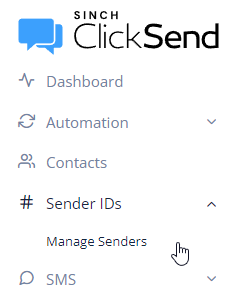
- Now Click on "My Numbers" and then the "Purchase" Button under dedicated numbers.

- You'll need to choose a country. This will be either the US or Canada. We don't support numbers outside this area.
- Now you'll have the option for a Local 10 digit number or a Toll-Free number. Review the prices and requirements before you choose. It's likely the Toll-Free Number is the better choice.
- Now you'll need to Register you're number. There's a step by step guide that they provide here: https://help.clicksend.com/article/nu1dkqqpi0-how-to-register-a-toll-free-number-tfn-with-click-send
- To accompany this, we'll help with some text you can provide.
- Active Company Website: You'll want to use a site that show you are an online host for online classes. Do not promote anything that goes against their policies. See "Content Guidelines" on the "Rules and Practices" page.
- Company Address is your home address if you're not a registered company.
- What type of messages are you sending: Conversational/Alerts
- Who are you sending these messages to any why? "We are sending notifications/reminders to users that sign up for an online class that we are hosting. It reminds them that there is a new class activity for today. TEXT reminders are completely optional."
- Provide an example message that reflects your use-case and message type. You'll need three examples, here is one.
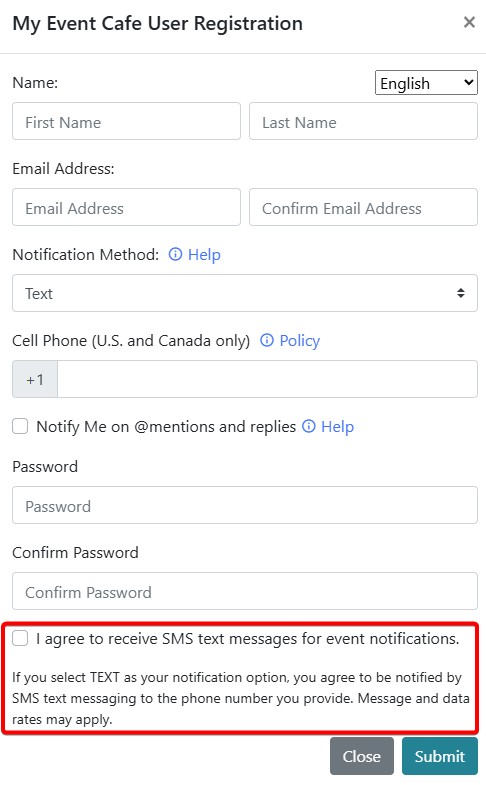
Hello from My Event Cafe! Today we are learning about cleaning with lemon oil. Let's get started https://myeventcafe.com/event/2003/activity/2 - Describe the Opt-in Process: The user optionally chooses the TEXT option upon sign-up and agrees to the conditions. They can change this at any time by going to their profile and change the options.
- Please provide supporting information about how customers opt-in: (You can upload the following images)
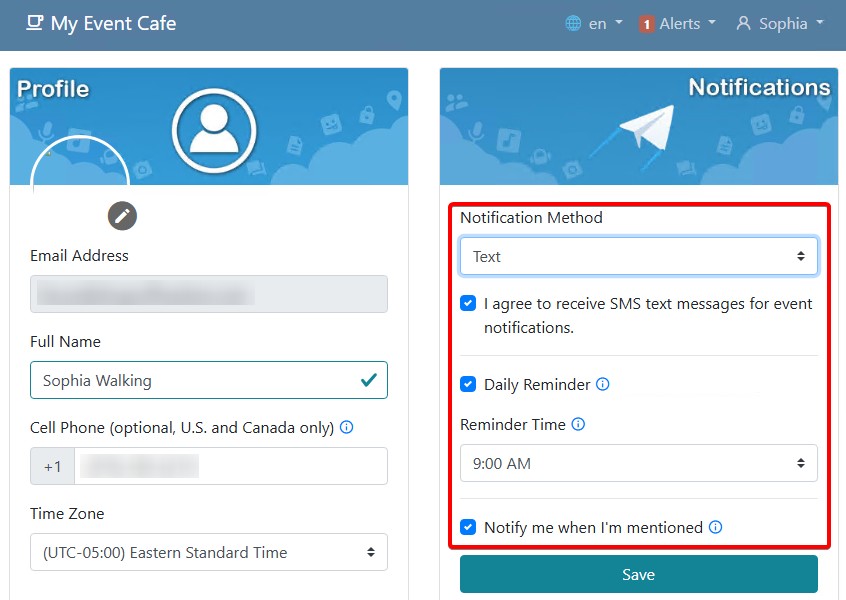
- Tick to confirm your website has a live Privacy Policy and Terms & Conditions: You can CHECK this. Our policy and terms are located at the bottom of the home page
Once you've submitted, it will take some time to review. Write down your new phone number, we'll need it later. You can always Click come back to "Manage Senders" to review the Phone Number.
Then, you can continue....
Connecting ClickSend to MEC:
- First you'll need the Username and API Key from the API Credentials of your ClickSend Account. (Pictured Below)
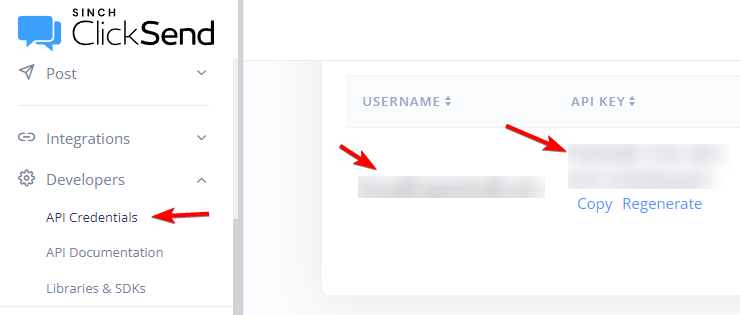
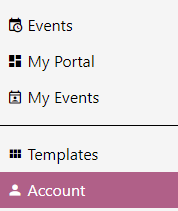
- Now that you have your information, go to the Account tab in My Event Café
- Scroll down to SMS/Text Messaging and click on "Enter ClickSend Information"
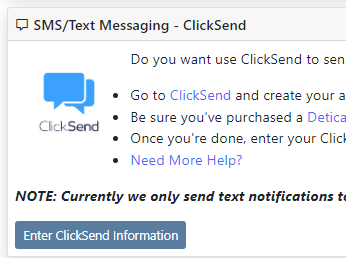
- Next, enter that information, along with your ClickSend Phone Number here.
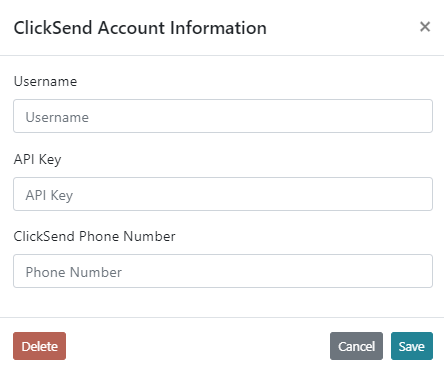
- Once you click ok you should see the following in your Account.
Be sure the 'Active' switch is on as shown in the picture below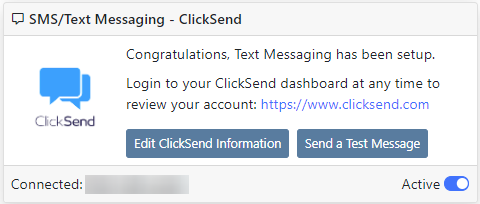
- As shown above, you can also Send yourself a test message to ensure it's been setup correctly. If you get an error message, double check your entries, especially your ClickSend Phone Number.
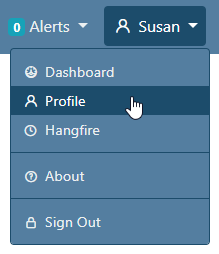
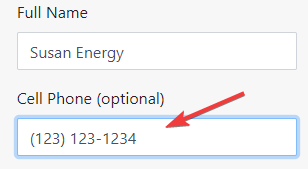
One Last Thing!: Be sure you have your correct cell phone number saved in your profile. This is the number where YOU will receive text messages. Each user also has the same option to provide their personal phone number where they will receive messages.